Deployment Guide

Full platform running
in under an hour.

T-SecOps deploys via Docker Compose on standard Linux hardware. Supports Ubuntu 22.04 LTS, Apple Silicon (ARM64), and NVIDIA GPU-accelerated servers. No proprietary appliances. No cloud sign-up.

<60
Minutes to Deploy
Docker
Container-Based
3
Platform Variants
0
Cloud Dependencies
Installation

Choose your platform

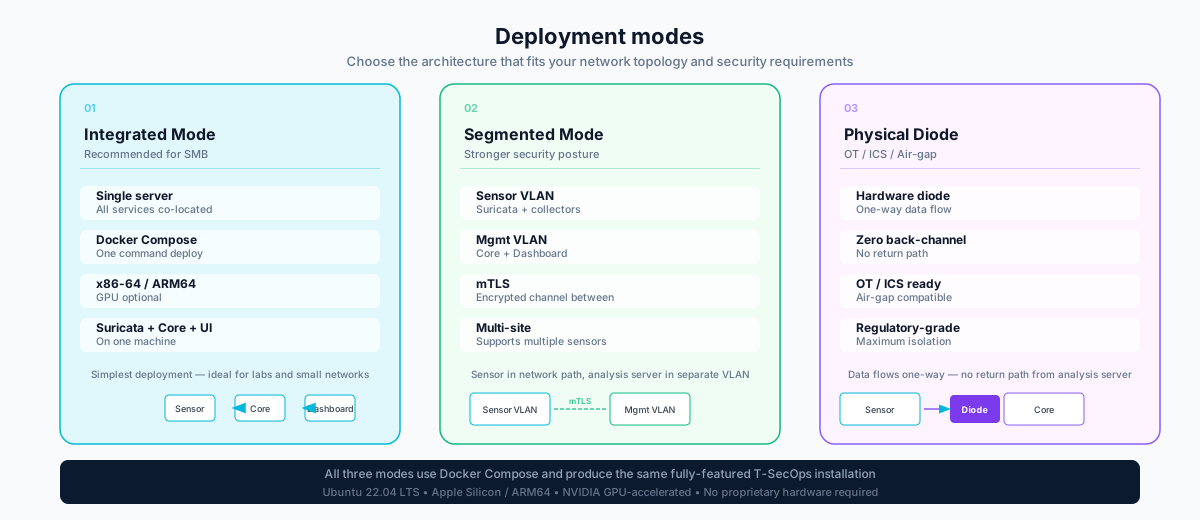
Select the deployment target below. All variants use Docker Compose and produce the same fully-featured T-SecOps installation — differences are in hardware prerequisites and AI performance.

1
System prerequisites
Install Docker Engine 24+, Docker Compose v2, and Git on a fresh Ubuntu 22.04 LTS server.
bash
# Install Docker Engine
curl -fsSL https://get.docker.com | sudo sh
sudo usermod -aG docker $USER

# Verify
docker --version && docker compose version
2
Clone the repository
Clone T-SecOps from the GitHub repository and navigate to the project directory.
bash
git clone https://github.com/wi24rd-com/xdragon.git t-secops
cd t-secops
3
Configure environment
Copy the example configuration and set your network interface, API keys for threat feed enrichment, and admin credentials.
bash
cp .env.example .env
# Edit .env — set SENSOR_INTERFACE, ADMIN_PASSWORD,
# and threat feed API keys (optional but recommended)
nano .env
4
Start the platform
Docker Compose pulls all images, starts all services, and loads Ollama AI models. Initial model download takes 3–8 minutes depending on connection speed.
bash
docker compose up -d

# Watch startup progress
docker compose logs -f --tail=50
The platform will be available at https://localhost:3000 once all containers reach healthy status. First login uses the ADMIN_PASSWORD from your .env file.
5
Verify & connect sensors
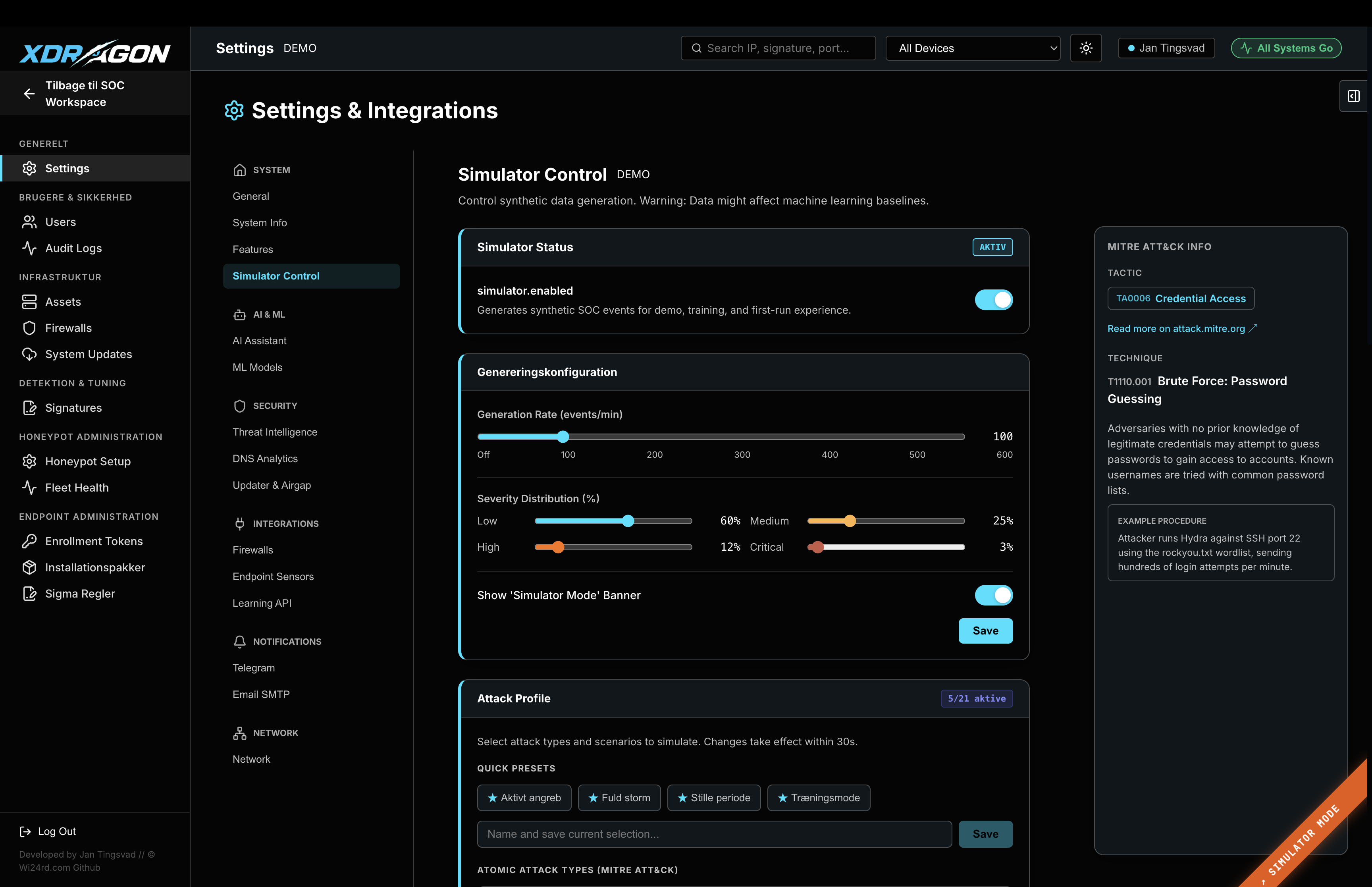
Open the dashboard, navigate to Settings → Sensor Configuration, and confirm that your network interface is listed as active. Suricata should show green status within 2 minutes.
Hardware Requirements — Ubuntu
CPU8 cores recommended (4 minimum)
RAM16 GB recommended (8 GB minimum for CPU-only AI)
Storage120 GB SSD (for logs, vector store, model weights)
Network1 NIC for management, 1 NIC for sensor (tap/mirror port)
OSUbuntu 22.04 LTS (20.04 also supported)
GPU (optional)NVIDIA GPU with 6+ GB VRAM dramatically improves AI performance — see NVIDIA GPU tab
1
Install Docker Desktop for Mac
Download and install Docker Desktop for Apple Silicon from docker.com. Enable Rosetta in settings for compatibility with any x86 container images.
bash
# After Docker Desktop install, verify ARM64 support
docker info | grep Architecture
# Should show: Architecture: aarch64
2
Install Homebrew dependencies
Install Git and set up your development environment if not already present.
bash
brew install git
# Verify
git --version
3
Clone and configure
Clone the repository and configure with the ARM64 profile, which uses Ollama's Apple Metal (MPS) acceleration.
bash
git clone https://github.com/wi24rd-com/xdragon.git t-secops
cd t-secops
cp .env.example .env
# Set PLATFORM=arm64 in .env
echo "PLATFORM=arm64" >> .env
4
Start with ARM64 profile
Use the ARM64 compose profile. Ollama will use Apple Metal (MPS) acceleration automatically on M1/M2/M3/M4 hardware.
bash
docker compose --profile arm64 up -d
docker compose logs -f ollama
Apple Silicon MPS acceleration provides comparable AI performance to mid-range NVIDIA GPUs. M3 Max / M4 Pro are particularly well-suited for running multiple models simultaneously.
Requirements — Apple Silicon
ChipApple M1, M2, M3, or M4 (any variant)
Unified Memory16 GB minimum; 32 GB recommended for full model set
Storage100 GB free disk space (APFS or APFS encrypted)
macOSVentura 13.0 or later
AccelerationMetal (MPS) — enabled automatically
1
Install NVIDIA drivers and CUDA toolkit
Install the NVIDIA Container Toolkit to expose the GPU to Docker containers.
bash
# Install NVIDIA Container Toolkit
curl -fsSL https://nvidia.github.io/libnvidia-container/gpgkey | sudo gpg --dearmor -o /usr/share/keyrings/nvidia-container-toolkit-keyring.gpg

# Configure and install
sudo apt-get install -y nvidia-container-toolkit
sudo nvidia-ctk runtime configure --runtime=docker
sudo systemctl restart docker

# Verify GPU access in Docker
docker run --rm --gpus all nvidia/cuda:12.3.0-base-ubuntu22.04 nvidia-smi
2
Clone and configure for GPU
Clone the repository and set the GPU profile in your environment configuration.
bash
git clone https://github.com/wi24rd-com/xdragon.git t-secops
cd t-secops
cp .env.example .env
# Set PLATFORM=gpu and CUDA_VISIBLE_DEVICES=0 in .env
3
Deploy with GPU profile
The GPU profile mounts the NVIDIA runtime and enables CUDA layers for Ollama. Classification cycle drops from ~40s to ~4s with a modern GPU.
bash
docker compose --profile gpu up -d
# Verify GPU usage
watch -n2 nvidia-smi
With GPU acceleration, all 5 autonomous background jobs can run simultaneously without impacting classification latency.
Requirements — NVIDIA GPU
GPUNVIDIA RTX 3060 or better (6 GB+ VRAM minimum)
CUDACUDA 12.1+ (driver 525.60.13+)
RAM32 GB system RAM recommended
VRAM12 GB+ recommended for concurrent model serving
OSUbuntu 22.04 LTS with nvidia-container-toolkit
Technology Stack

Built on proven open components

T-SecOps is assembled from battle-tested technologies. Every component can be inspected, extended, and integrated with your existing toolchain.

Frontend
React + TypeScript + Vite
Single-page application with real-time WebSocket updates. Tailwind CSS design system. Dark/light mode.
Backend API
FastAPI (Python 3.11+)
Async REST API with WebSocket support. mTLS authentication for endpoint agents. OpenAPI documentation auto-generated.
IDS/IPS Engine
Suricata 7
Industry-standard IDS/IPS with custom rule sets, inline blocking mode, and EVE JSON log output for structured parsing.
Primary Database
PostgreSQL 16 + pgvector
Relational storage for all alerts, events, and compliance data. pgvector extension powers semantic search with embeddings.
Time-Series DB
TimescaleDB
Hypertable extension for efficient storage and querying of high-volume time-series network event data.
AI Runtime
Ollama + qwen2.5:7b
Local LLM serving. Supports CUDA, Metal (MPS), and CPU fallback. Six custom Modelfiles with security-focused system prompts.
ML Models
scikit-learn + XGBoost
Isolation Forest (anomaly detection), XGBoost + HDBSCAN (beaconing), Shannon entropy (DGA/tunneling).
Cache / Queue
Redis 7
Session cache, background job queue, and real-time event bus for WebSocket push notifications to the frontend.
Task Scheduler
Celery + APScheduler
Manages all autonomous background jobs. Configurable schedules, retry logic, and job execution audit logging.
Operations Reference

Quick command reference

Common operations for managing your T-SecOps deployment.

Service Management
# Start all services
docker compose up -d

# Stop all services
docker compose down

# Restart a specific service
docker compose restart backend

# View all container status
docker compose ps

# Follow logs (all services)
docker compose logs -f
Updates & Maintenance
# Pull latest images
docker compose pull

# Update and restart
docker compose up -d --pull always

# Database backup
docker exec tsecops-db pg_dump -U tsecops tsecops > backup.sql

# Reload Suricata rules
docker exec tsecops-suricata suricatasc -c reload-rules

# Rebuild AI models (after .env change)
docker compose restart ollama
AI Model Management
# List loaded models
docker exec tsecops-ollama ollama list

# Pull a new base model
docker exec tsecops-ollama ollama pull qwen2.5:7b

# Reload all T-SecOps modelfiles
docker exec tsecops-ollama /app/load-models.sh

# Test model response
docker exec tsecops-ollama ollama run t-secops-analyst "Explain this alert: Port scan from 185.220.101.1"
Sensor & Agent Configuration
# Check Suricata status
docker exec tsecops-suricata suricatasc -c uptime

# View active network interface
docker exec tsecops-suricata suricatasc -c iface-list

# Generate endpoint agent token
curl -X POST https://localhost:3000/api/agents/token \
  -H "Authorization: Bearer $ADMIN_TOKEN"

# View connected endpoints
curl https://localhost:3000/api/agents \
  -H "Authorization: Bearer $ADMIN_TOKEN"

Questions about deployment?

Get in touch with the team — we can help you choose the right architecture and walk through your specific network environment requirements.